AI Game Modding: From Concept Art to a Playable Mod
A brass lantern looks good in a concept image. Shrink it to an inventory icon, though, and the handle may disappear into the frame. This AI game modding guide follows that gap: choosing the art, preparing the file, and checking whether the game loads it.
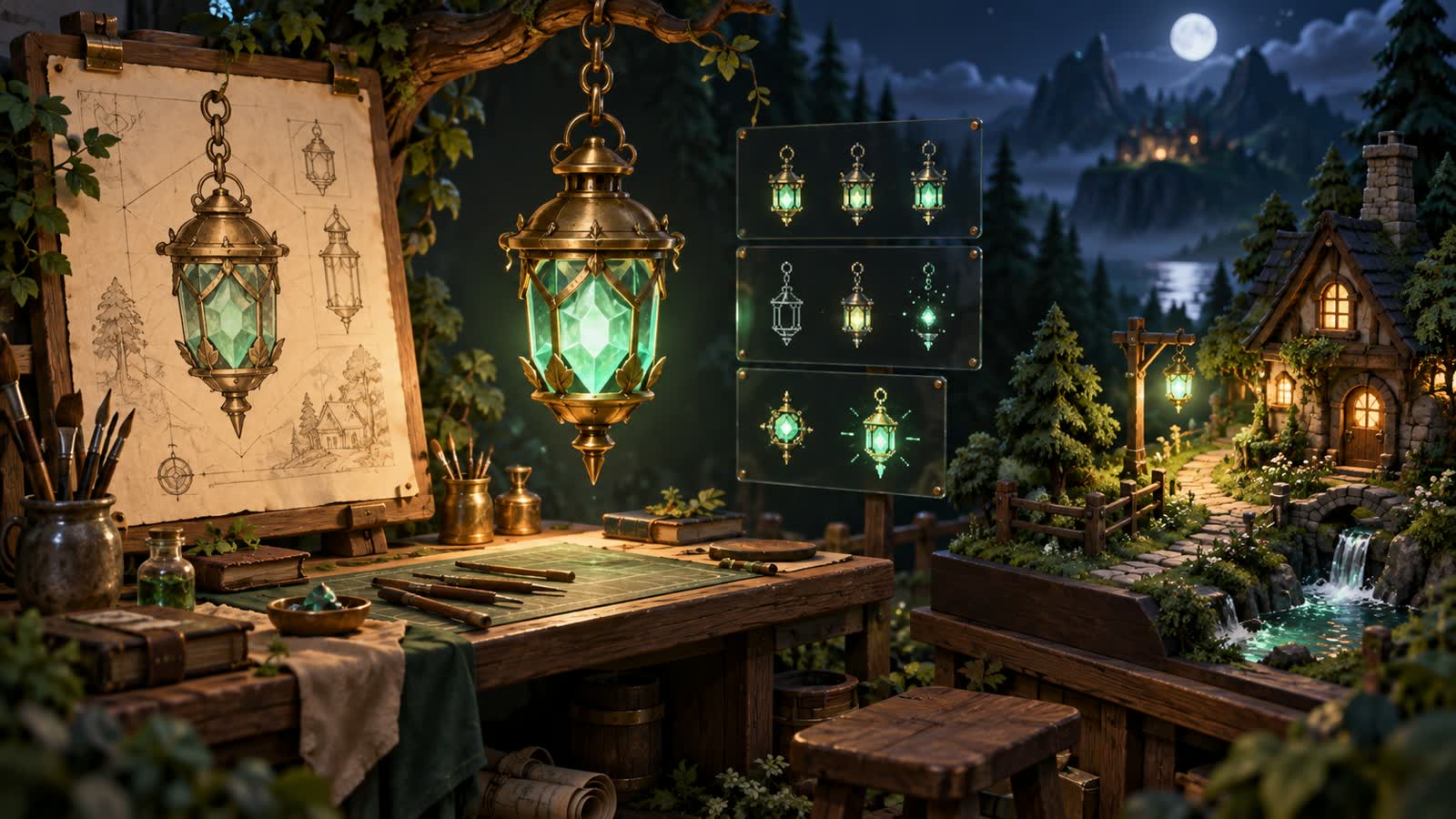
Choose an item you can debug
For a first mod, we would choose a static inventory item. If its icon is missing, there are only a few places to look: the texture, the filename, and the code that loads it. An animated enemy adds frame timing and combat behavior before you have resolved those basics.
A coding assistant can help find the loader documentation and draft the item code. An image generator is useful for trying shapes and materials. Keep those tasks separate at first: you can replace the lantern’s artwork without also changing how the item behaves.
What Universal Modder gives you
The Universal Modder repository bundles instructions for coding agents, a Python CLI called um, asset tools, and shared modding notes. For this project, the useful starting points are its game scan and knowledge search: which version is installed, which loader might work, and what earlier modders have documented.
The commands below install the standalone CLI and inspect a game. The repository lists Git, Python 3.10+, and ffmpeg as requirements, with uv recommended. Its 3D-to-sprite tools also need Blender. For an agent plugin, use the installation instructions for your particular coding assistant.
uv tool install git+https://github.com/rehan-remade/universal-modder
um --help
um scan --list
um scan "YOUR GAME"
um kb search "YOUR GAME"
Check the scan against the loader’s documentation for your game version. We would keep this first project offline and single-player. The README also covers hosted servers and multiplayer, but rules out cheating against other players and bypassing anti-cheat, DRM, or ownership checks. The Hugging Face introduction takes the narrower offline, single-player approach.
The first milestone: a named item with an icon
The Mosslight Lantern has a brass frame and a green crystal. In the first version, it only needs to appear in a test inventory with the right name and texture. Leave the crafting recipe, placement, and light emission for later. Each of those needs code beyond loading an icon.
A lantern you can carry and a lantern you can place may be separate objects in the game’s code. The tModLoader Basic Item guide, for instance, distinguishes items, projectiles, and tiles. Its basic item uses a ModItem class and a PNG texture with a matching path and name. If you choose Terraria, start with that item guide before adding a placeable tile.
Investigate [game name and version] for an offline Mosslight Lantern mod.
Identify the supported loader, matching documentation, and save folder.
First milestone: one named inventory item with one static texture.
List the files you expect to change and how to undo the change.
Propose an in-game test and identify any missing information.
Do not install a loader or edit game files during this research step.
Decide what must survive at 32 pixels
For this lantern, the handle, brass frame, and green center carry the design. Fine engraving is expendable. We would try a 32 × 32 canvas to see whether those three shapes still read. That size is a choice for this exercise; check your loader’s requirements before exporting.
| Decision | Working brief | Why it matters |
|---|---|---|
| View | Front-facing, centered | Keeps the outline readable in an inventory |
| Canvas | 32 × 32 pixels after cleanup | Shows whether the handle and crystal remain legible |
| Palette | Brass, moss green, dark outline | Separates the frame from the crystal |
| Background | PNG with real alpha | Avoids a visible rectangular backdrop |
| First version | One static frame | Separates loading failures from animation errors |
| Name | MosslightLantern.png; verify loader path | Keeps the file and code reference consistent |
Keep the large concept image as a reference, then prepare the small texture in an editor. View it at 100% zoom. If the handle merges into the top of the frame, widen the opening or simplify the frame. Adding more engraving will not fix that outline.
Generate the object without its surroundings
In Froging’s image generator, ask for the lantern on its own. A forest scene makes an attractive illustration, but leaves foliage, shadows, and background colors to remove from the asset. The prompt below is for a concept reference; the final pixel grid is an editing task.
Design an original compact brass lantern containing a moss-green crystal.
Front-facing view, centered single object, sturdy loop handle.
Bold readable silhouette, broad brass bands, three main material colors.
Simple neutral background, no lettering, no scene, no extra objects.
Designed to remain recognizable when redrawn as a small inventory icon.
Choose the version with the clearest handle and frame, then edit from that reference: “Keep the handle, body proportions, brass frame, and green crystal. Remove the fine engraving and small reflections.” Check the simplified result at icon size before changing the colors or proportions.
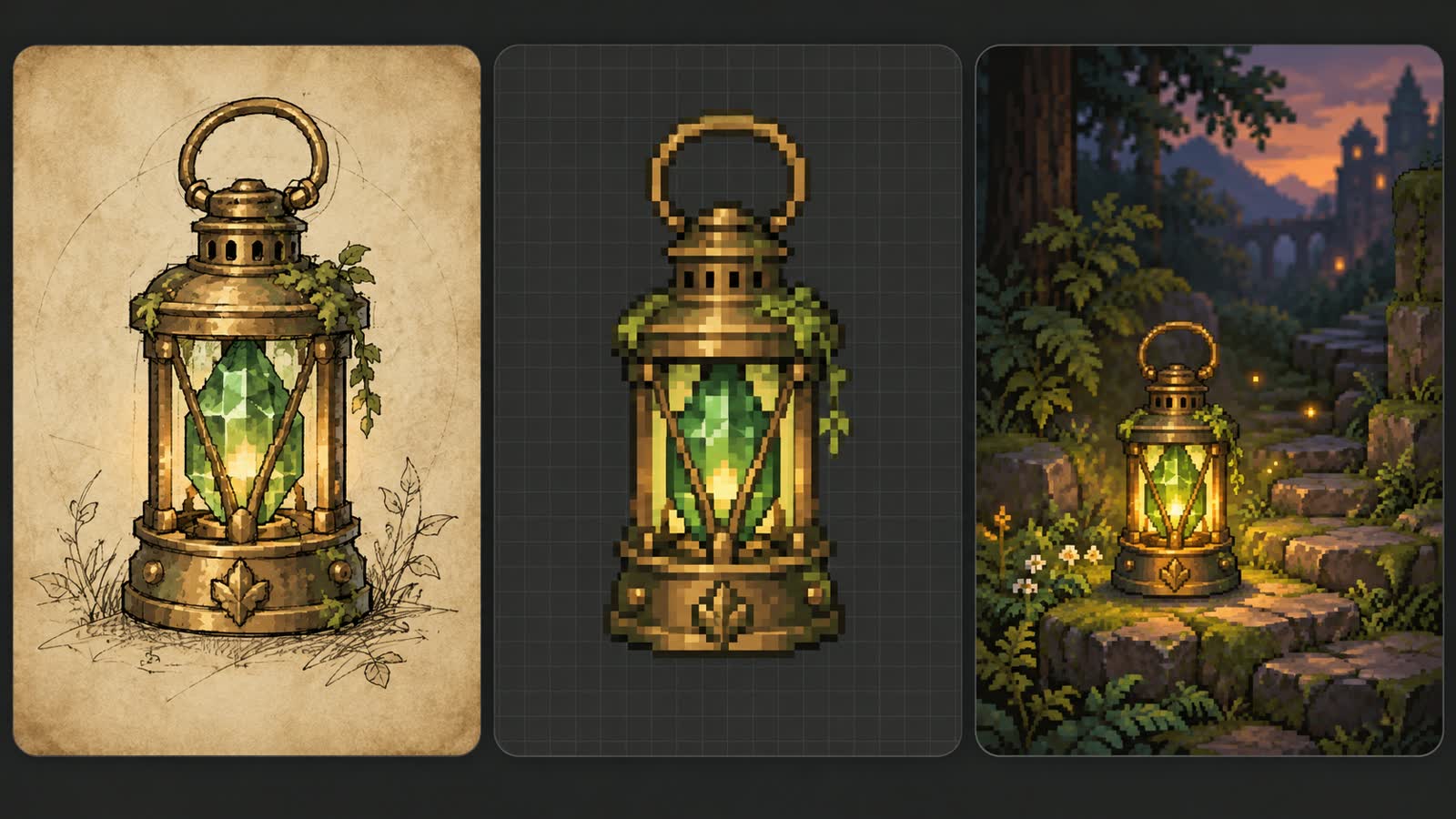
Check transparency on both a light and a dark background. A checkerboard painted into the image will remain visible; it has to be removed or replaced with actual alpha transparency. If you want to try other materials, browse the text-to-image prompt library.
Check the export before changing the code
Redraw or simplify the chosen image at the target resolution, then export the format your loader expects. Check for excess empty space around the lantern and confirm the filename matches the code. If you add animation later, keep the frame size and pivot fixed so the lantern does not jump between frames.
If the texture is sharp in your editor but blurry in the game, look at scaling and import settings. The Godot image import documentation recommends lossless compression for pixel art and explains that Godot 4 sets 2D texture filtering on CanvasItem properties, with a project default. For a Godot project, those are the settings to inspect first.
Save the original image and cleaned export alongside a note of the prompt, dimensions, and edits. If a later revision loses the shape you liked, you will have the earlier file to work from.
Load it, save, quit, and load it again
Use a disposable profile or world and back up the save before testing. Confirm the game and loader versions, build the item, and launch through the supported modding route. Then check the following:
- Load: start the game and confirm the mod loads without new errors.
- Find: obtain the lantern through the chosen test method and verify its name and icon.
- Inspect: view it against bright and dark backgrounds; check for a rectangle, clipped edges, or unreadable detail.
- Persist: save, quit, and reload the disposable profile to check that the item survives correctly.
- Recover: follow the documented removal procedure and confirm the backup can restore the pre-test state.
Keep the logs and screenshots with the game and loader versions. When you add placement, test picking the lantern up again. When you add light emission, check it in a dark area. Those checks belong to the new behavior; the inventory test does not cover them.
Before sharing, write down the versions you tested, required dependencies, installation steps, removal steps, and known problems. Run the checks described by um publish check --help, then inspect the archive for game files or credentials that should not be included.
AI game modding FAQ
Compatibility, sprite preparation, and the lantern example.
What is AI game modding?
AI game modding uses coding assistants and generation tools to help research a game, develop mod code, and create assets. The game’s loader, version, formats, and modding rules still determine what can run.
Does Universal Modder work with every game?
The name does not guarantee compatibility with your game. Check whether there is a documented loader or modding route for the exact version you have, then test a small change.
Can I import an AI-generated image directly as a sprite?
Sometimes, but first check the target dimensions, real alpha transparency, camera angle, frame layout, and file naming. A large illustration or a painted checkerboard is not a finished game sprite.
Does Froging AI install or test game mods?
No. Froging AI provides image and video creation tools that can help with visual exploration. Mod installation, game code, asset conversion, and gameplay verification happen in separate tools.
Was the Mosslight Lantern tested in a game?
No. We created the lantern concept and illustrations for this guide. We have not built or tested it as a mod.
Research and further reading
Documentation reviewed October 10, 2026. Check the current instructions before installing a loader or toolkit.
- Hugging Face: Universal Modder introduction — the starting point for our research.
- Universal Modder repository — documented tools, setup, and project boundaries.
- tModLoader: Basic Item — a concrete example of item code and texture conventions.
- Godot: Importing images — engine-specific compression and filtering guidance.