Describe the image you have in mind, from a product photo to an illustrated scene. Choose a model and image size, then generate a few ideas to work with.
Sign up to create your first image free with Nano Banana 2 Lite.
Image Preview
Your generated images will appear here.
Made with Froging AI
Images made from text prompts
Neon Rooftop Boss Battle
Two original anime rivals charge opposing energies above a rain-soaked city.
Read the prompt
Dynamic hand-drawn anime key visual of two original rival fighters facing each other on a rain-soaked futuristic rooftop, one surrounded by electric cyan energy and the other by ember-red energy, low dramatic camera angle, wind whipping their coats, dense neon city below, expressive silhouettes, detailed cel shading, cinematic action composition, original characters, no text, no watermark
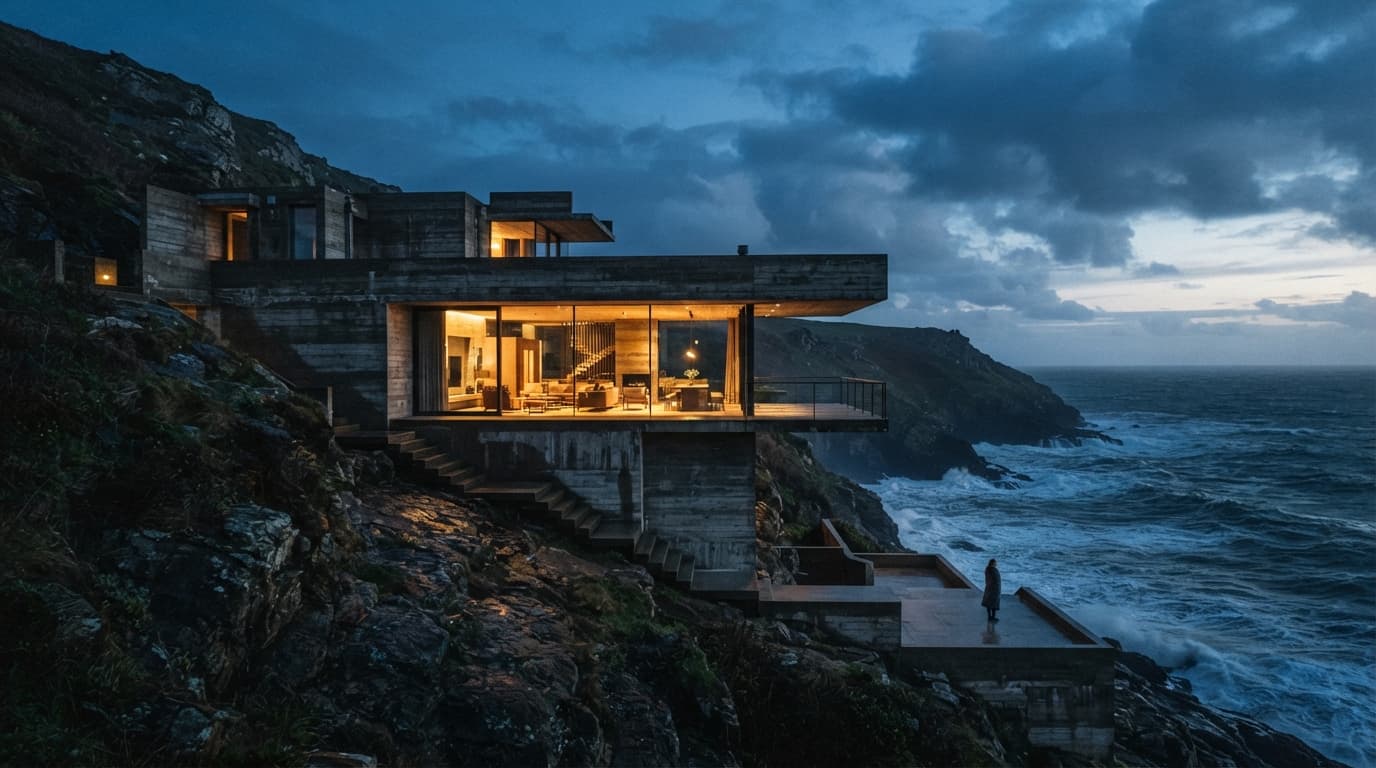
Brutalist House at Blue Hour
A cliffside architectural scene balanced between rough concrete and warm interior light.
Read the prompt
Award-winning architectural photograph of a dramatic brutalist concrete house embedded into a windswept coastal cliff, warm interior light glowing through floor-to-ceiling glass, rough ocean below, tiny human figure for scale, blue-hour sky, restrained cinematic color, realistic materials, wide editorial composition, no text, no watermark
Deep-Sea Research Station
A yellow submarine approaches a glowing underwater docking ring among fish and coral.
Read the prompt
One compact yellow research submarine approaching a monumental circular entrance of an underwater research station. Teal ocean, coral pink anemones in foreground, small silver fish, warm illuminated docking ring. Wide cinematic composition, realistic underwater optics, no text.
Botanical Deer Portrait
Pink flower buds decorate branching antlers in a softly lit spring clearing.
Read the prompt
A single elegant brown deer in a bright spring clearing, three-quarter close view with entire branching antlers visible. Small closed pink flower buds attached to the antlers, soft mint foliage, luminous daylight, natural realistic fur, delicate botanical fantasy, no text.
How to use AI Image Generator
01
Describe your idea
Name the subject, setting, framing, and visual style. Include colors and lighting when they are important to the composition.
02
Set the format
Choose a model, then pick the image size and shape that fit your project.
03
Review and adjust
Check details and visible text, save a version you like, or adjust the prompt. To modify an existing image, continue with AI Image Editor.
Ideas for your next project
Product and campaign concepts
Explore backgrounds, materials, and lighting for a campaign. Specify where the subject sits and where you need room for a headline.
Illustrations and imagined worlds
Build a scene around one strong idea. Describe how it should look: a watercolor landscape, a paper-cut city, or a detailed miniature world.
Social and editorial visuals
Create a picture for a post, article, or thumbnail. Choose a photographic or illustrated style, and check that the subject is clear at the size you plan to use.
An image prompt is most useful when it explains what the viewer should notice first. Begin with the subject and its placement, then add the medium, light, and supporting details. This gives you a clearer way to compare results than collecting unrelated style keywords.
01
Choose where you’ll use the image
A tall social post, a square product tile, and a wide article cover need different compositions. Choose a supported aspect ratio before generating. Place important details away from likely crop boundaries and leave space where you plan to add a heading later.
02
Make the main subject clear
Name one main subject and describe its position or scale. Supporting objects should make that subject easier to understand. If every object is equally detailed or colorful, the result can feel crowded even when each individual element looks convincing.
03
Describe the materials and light
For a photograph, describe the surfaces and where the light comes from. For an illustration, name the medium and palette. A few compatible choices such as soft daylight, matte ceramic, and a pale background are easier to evaluate than conflicting treatments.
04
Compare models with the same brief
Keep the prompt and intended framing similar when trying a different model. Compare the details relevant to your project, such as faces, materials, composition, or lettering. Use the same prompt so you can compare the results fairly.
Prompt workshop
Add detail to your image prompt
Compare these two prompts for a reading corner. The second explains where to put the chair, how to light the room, and where to leave space for a headline.
Starting idea
A nice image of a reading corner.
More specific direction
Editorial interior photograph of a compact reading corner. One moss-green armchair sits on the right beside a low oak table and a closed book. Soft morning light enters from the left. Warm cream plaster wall with uncluttered space in the upper-left for a headline added later. Natural textures, eye-level view, no text.
Placement
The armchair on the right and open space on the left establish a practical composition.
Materials and light
Oak, plaster, and soft morning light give the room a warm, natural look.
Finishing plan
Reserving space for a headline lets you add exact typography in your design tool after generation.
Choose the version that works at its final size
Inspect both the complete composition and a closer view of important details. A visually striking full-size image may still lose its subject when reduced to a small card or cropped for a different placement.
The composition feels crowded
Too many subjects and decorative details compete for attention.
Try next
Remove secondary objects and specify one focal point with clear surrounding space.
The style feels inconsistent
The prompt combines several incompatible media or lighting treatments.
Try next
Choose one main medium and one lighting setup, then add only the details that support them.
Lettering is inaccurate
Generated typography may differ from the exact wording you intended.
Try next
Generate the artwork with room for text, then add precise copy in a design editor.
One detail needs changing
Regenerating the whole scene may replace parts you already like.
Try next
Save the preferred image and try a focused edit using it as a reference in AI Image Editor.
Find your model
Read about each model below, or try one in the generator to see which suits your project.
Enter a description, choose a model and image size, and select Generate. Sign in when prompted, then review and download the result in the generator.
Can I create images in different styles?
Yes. Describe the style you want, such as studio photography, watercolor, or a miniature diorama. Results vary by model and prompt.
How do image credits work?
The generator displays the cost for your model and resolution. Your image and video generations use the same account balance. Visit Pricing for the current plans and credit packs.
How can I edit an image I already have?
Open AI Image Editor, upload the image, and describe what should change. Include the details you want to preserve along with the edit.
Can I make an image for a specific layout?
Select a supported aspect ratio and describe subject placement, framing, and any space you need for later text. Treat these as composition instructions rather than exact pixel coordinates, and check the result in its intended layout.
Can I generate exact text inside an image?
You can request lettering, but spelling, spacing, and placement can vary. For headlines, prices, or other copy that must be exact, add the text to the generated artwork in a separate design tool.
How do I turn the result into a video?
Download your selected image and upload it in Image to Video. Describe the motion separately from the image’s appearance, then choose the supported video settings and review the displayed credit cost.




 Qwen Image 2.1
 GPT Image 2.5 Flare