Product backgrounds
Ask for a plain studio background while keeping the product in place. Check the label wording, cap shape, and contact shadow in the result; each can change even when the overall image looks convincing.
OpenAI’s option for detailed image editing when precision matters more than speed.
This generation uses 8 credits. New accounts start with 0 credits.
Image Preview
Your generated images will appear here.
About the model
GPT Image 2.5 Sunburst creates and edits images from text and image inputs. OpenAI positions it for work that needs more precise edits, including product images and campaign artwork. It takes longer to generate than Flare. It can also create an image from a text prompt without a reference photo.
A common product-photo task is to replace the background without changing the bottle or its label. Spell out both parts of that request. Sunburst’s focus on precision does not guarantee that a logo, small text, or object shape will survive every edit unchanged. Compare those details with the original before using the result.
Source: OpenAI’s launch announcement.
An editing workflow
A useful Sunburst brief separates the edit from the details to preserve. This visual walkthrough starts with a neutral product image and explores a warmer campaign setting while keeping the bottle as the anchor.
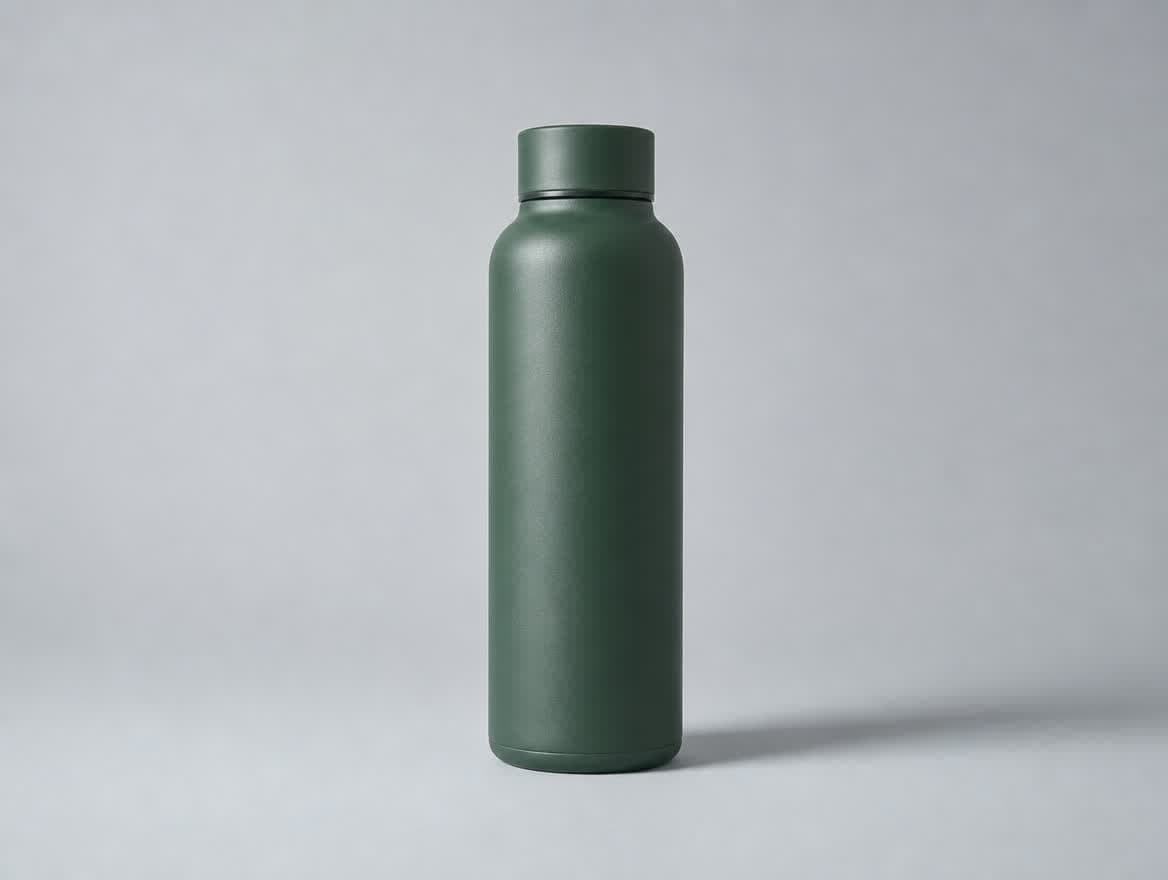
Before · Reference image
A plain background and an unobstructed outline make the cap, shoulder, base, and finish easy to inspect. Use these details as your reference when reviewing an edit.
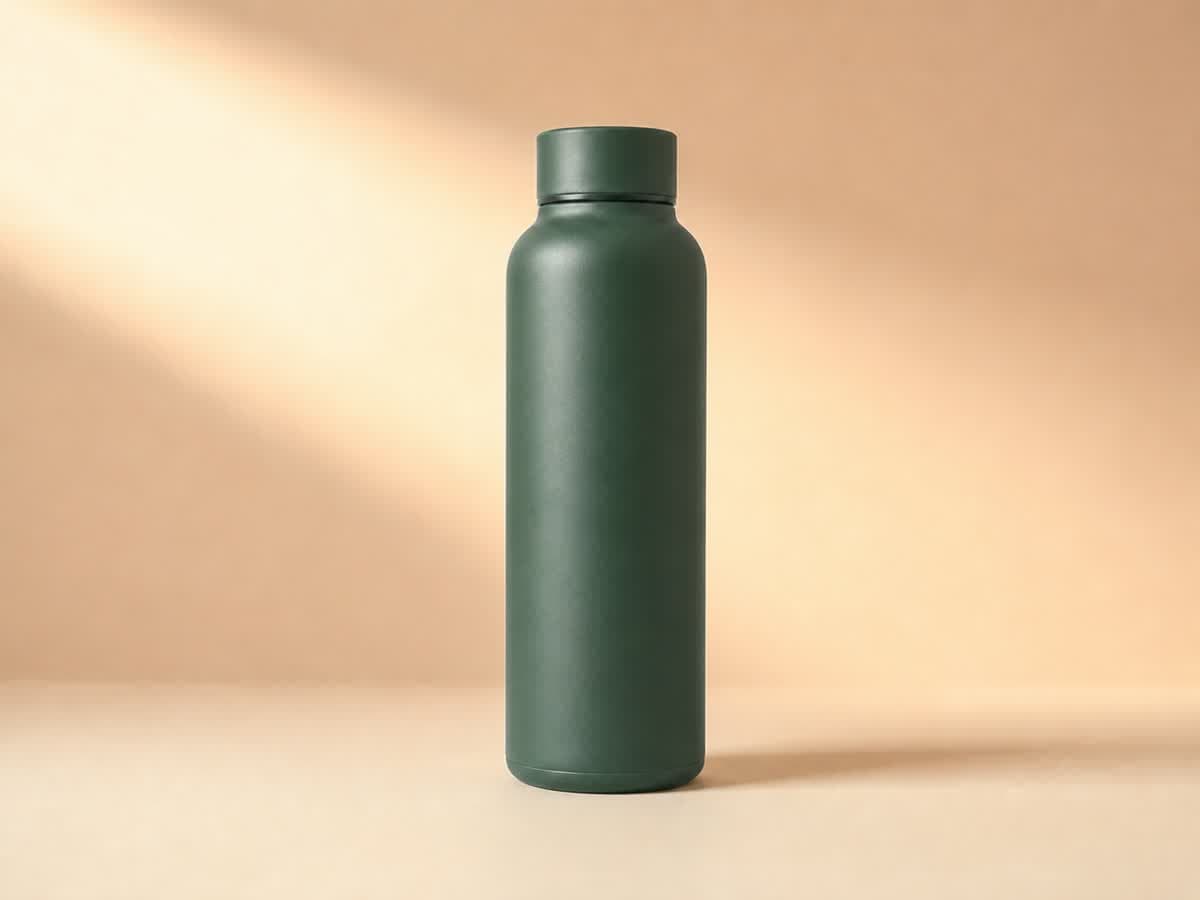
After · Background edit
The warmer backdrop and window light change the mood without introducing props. Compare the bottle outline, cap, and scale against the reference, then check the new contact shadow.
Edit this product reference photograph. Preserve the exact forest-green bottle, cap shape, silhouette, powder-coated material, scale, camera angle and centered position. Replace only the cool gray studio setting with a warm ivory tabletop and a warm peach-to-cream background. Add a broad diagonal band of soft late-afternoon window light across the background and a subtle realistic contact shadow beneath the bottle. Warm editorial product campaign mood, restrained and elegant. Do not add props, text, logos, labels, extra bottles or change the bottle design. Keep the same landscape 4:3 framing.
Keep the camera angle fixed for a focused background edit. If the product shape changes, simplify the request and return to the reference image.
Suggested uses
Ask for a plain studio background while keeping the product in place. Check the label wording, cap shape, and contact shadow in the result; each can change even when the overall image looks convincing.
Describe which side needs empty space and where the product should sit. Check whether the product has been resized or cropped when you compare the edit with the reference.
For a mug, ask to change the glaze from glossy white to matte terracotta while keeping the handle and silhouette. Reflections should change with the material; the mug’s geometry should not.
Use a photo where the label, edges, and material are visible. A blurry reference makes it difficult to judge whether an edit preserved those details.
“Replace the background with an ivory studio wall” is the edit. “Keep the bottle, label, and camera angle unchanged” sets the limits. Avoid asking for a new viewpoint and identical visible edges in the same request.
Zoom in on labels, outlines, and reflections. Keep the original file and each useful revision. If a later edit changes the product, return to the earlier version before trying again.
Choosing your model
Start with Sunburst when you already have an image and a specific change in mind. Name the new background, material, or lighting, then describe the product details you want to preserve. Compare the edit with the reference before choosing your final image.
Starting with a blank canvas and exploring several creative directions? Explore Flare.Sunburst focuses on detailed image editing where precision matters, including product images and campaign artwork. Consider it for changes to backgrounds, materials, and composition that need careful control.
No. It also creates images from text prompts. This page focuses on editing because that is the main reason to consider Sunburst over the faster Flare model.
There is no guarantee of an exact match. Check logo shapes, spelling, packaging proportions, and colors against the original. If the final artwork must use an exact brand mark, place the original logo in your design tool.
Consider Flare when you want several drafts quickly, such as different backgrounds for a social post. Sunburst is the option to consider for a more detailed edit when you can wait longer.
Use a clear reference image and separate the requested change from the details to preserve. For a product photo, describe the new background, then specify the bottle shape, label, camera angle, and other details that should stay consistent.
Use an available model in the image studio, or browse prompts for your next image.