Product ad drafts
Try a bottle against a plain backdrop, then in a kitchen setting. Keep the bottle description fixed so you can compare the settings without also changing the subject.
OpenAI’s faster option for everyday image generation and editing.
This generation uses 8 credits. New accounts start with 0 credits.
Image Preview
Your generated images will appear here.
About the model
GPT Image 2.5 Flare is an OpenAI model that creates and edits images from text and image inputs. OpenAI recommends it for everyday image generation, with speed as a main advantage. Both Flare and Sunburst support editing; Flare is not limited to making images from scratch.
For example, you might want to compare a product on a plain studio background with the same product on a kitchen counter. That is the kind of repeated generation task where shorter waits would be useful. Keep the subject consistent while exploring different backgrounds, lighting, and compositions.
Source: OpenAI’s launch announcement.
Creative directions
Explore the kinds of briefs you can bring to Flare: a bold product campaign or a tactile editorial illustration. A clear subject, deliberate composition, and a specific visual style give each direction its own identity.
Campaign concept
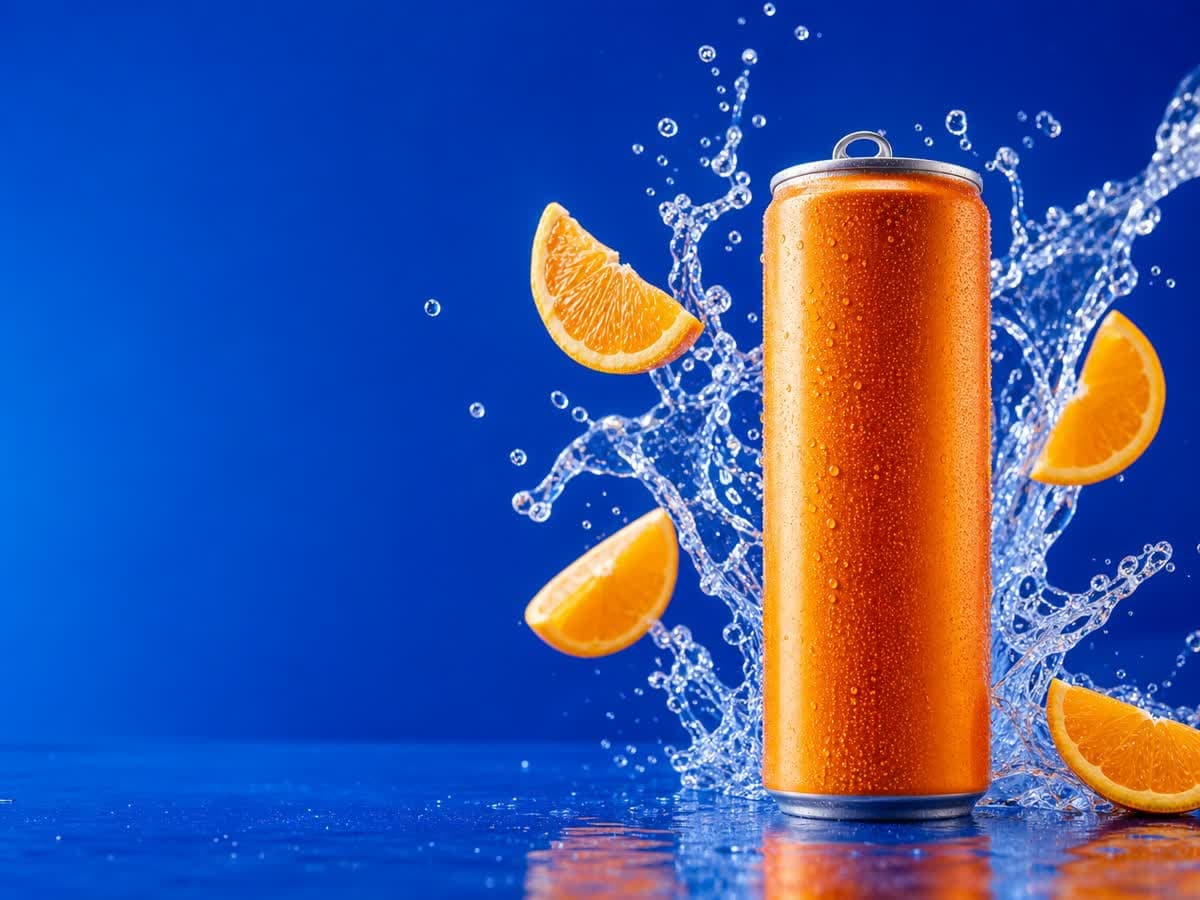
The can sits on the right while the blue space on the left leaves room for ad copy. Orange slices, condensation, and the water splash make freshness part of the composition.
High-end citrus soda campaign photograph, a single unbranded brushed-aluminum slim can with a vivid tangerine orange body on the right third of a wide frame, floating orange slices and a dramatic clear sparkling water splash curling behind the can, a few suspended droplets, rich electric cobalt-blue seamless background and glossy blue surface, crisp hard studio lighting, premium realistic condensation, silver pull tab and precise cylindrical shape, left third mostly clean blue negative space for later ad typography, sharp commercial product photography, highly legible composition, no writing, no letters, no logos, no watermark. Landscape 4:3 composition.
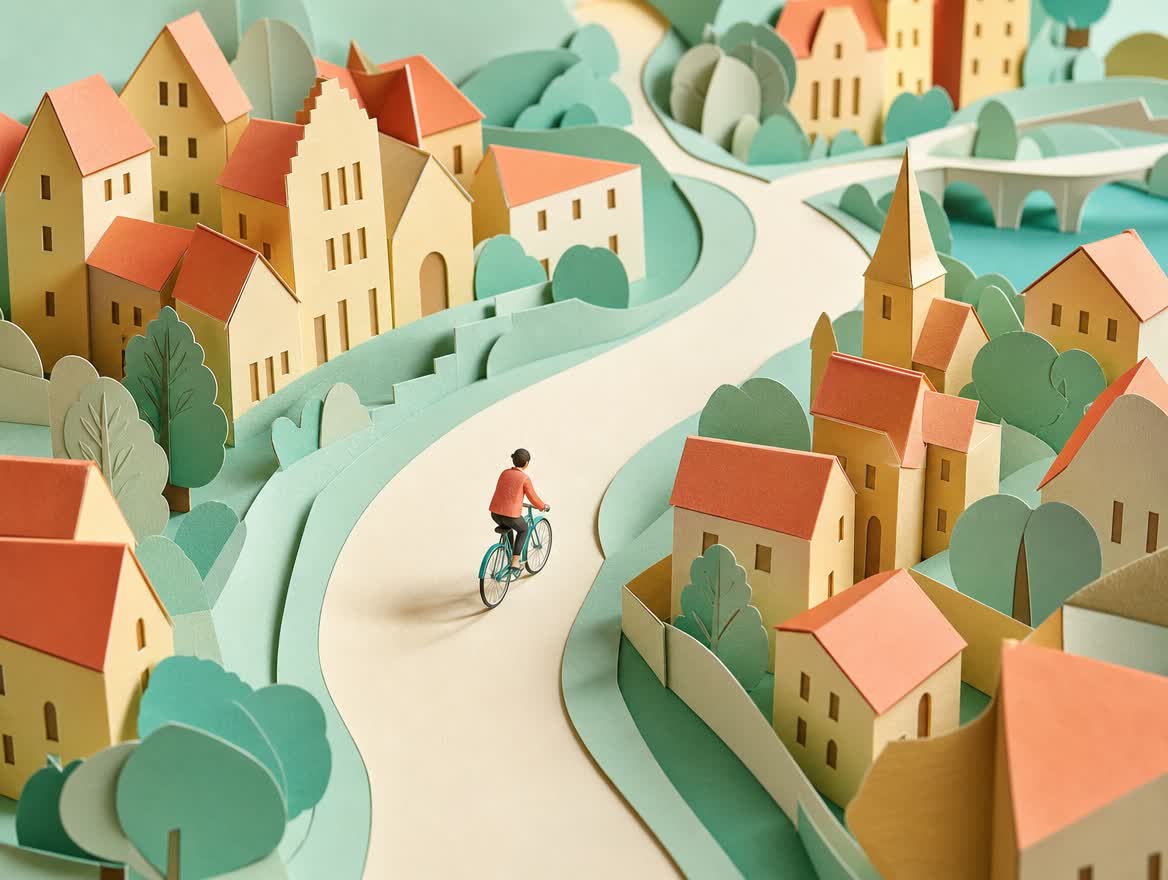
Illustration concept
Layered paper, a limited pastel palette, and a curving path create a cohesive editorial scene. Specify the material and viewpoint to carry the same art direction across a series.
Editorial paper-cut illustration for an urban cycling campaign. A single small rider in a coral jacket on a simple teal bicycle follows a broad curving cream path through a miniature city of folded pastel paper houses, apricot rooftops, mint trees and butter-yellow walls. Three-quarter overhead view, tactile layered cardstock with visible cut edges and soft cast shadows, restrained coral mint cream palette, warm diffuse morning light, playful confident art direction, sweeping diagonal composition, no brands, no signage, no text, no watermark. Landscape 4:3 composition, coherent bicycle silhouette, rider small enough to read as a graphic shape, handmade paper world rather than photorealism.
Suggested uses
Try a bottle against a plain backdrop, then in a kitchen setting. Keep the bottle description fixed so you can compare the settings without also changing the subject.
Specify where the headline will go. For a post with text on the left, ask for the subject on the right and an uncluttered background. Add final typography in your design tool if exact lettering is essential.
Compare warm window light with a cooler studio setup. Name the light source and two or three colors; words such as “beautiful” or “premium” leave much more open to interpretation.
Start with a subject, setting, and framing. For a bottle ad, specify the bottle color, the surface beneath it, and where it should sit in the frame. Add lighting after those basics.
If the composition works but the background feels too busy, change the background instruction first. Rewriting the entire prompt makes it harder to tell what helped.
Check the object shape and any visible text before choosing a draft. Save the prompt alongside the image so you can return to that version. A faster model can still need several attempts.
Choosing your model
Start with Flare when the brief is still taking shape: a product campaign, an illustrated scene, or a new visual direction. Define the composition first, then vary the palette, setting, or style to compare ideas.
Working from an existing product photo and need a more precise edit? Explore Sunburst.Flare focuses on everyday image generation and editing with faster creative iteration. Consider it for exploring ad concepts, social images, and variations in backgrounds or lighting.
Flare prioritizes speed. Sunburst offers more precision for detailed edits and takes longer to generate, according to OpenAI. Both can create new images and edit existing ones.
Yes. OpenAI documents both text and image inputs for Flare, supporting new image creation and edits to existing images.
Describe the subject, setting, composition, and lighting. Specify where you need empty space for text, and keep the main subject description consistent when comparing variations.
Change one part of the prompt at a time, such as the background, framing, or light source. Compare each variation with the previous image and check object shapes and visible text before choosing a result.
Use an available model in the image studio, or browse prompts for your next image.