ByteDance Seed · Image Studio

Seedream 5.5 AI Image Generator

Create a campaign image from a prompt, change one detail in a product photo, or generate a transparent PNG for your next layout.

This generation uses 8 credits. New accounts start with 0 credits.

Image Preview

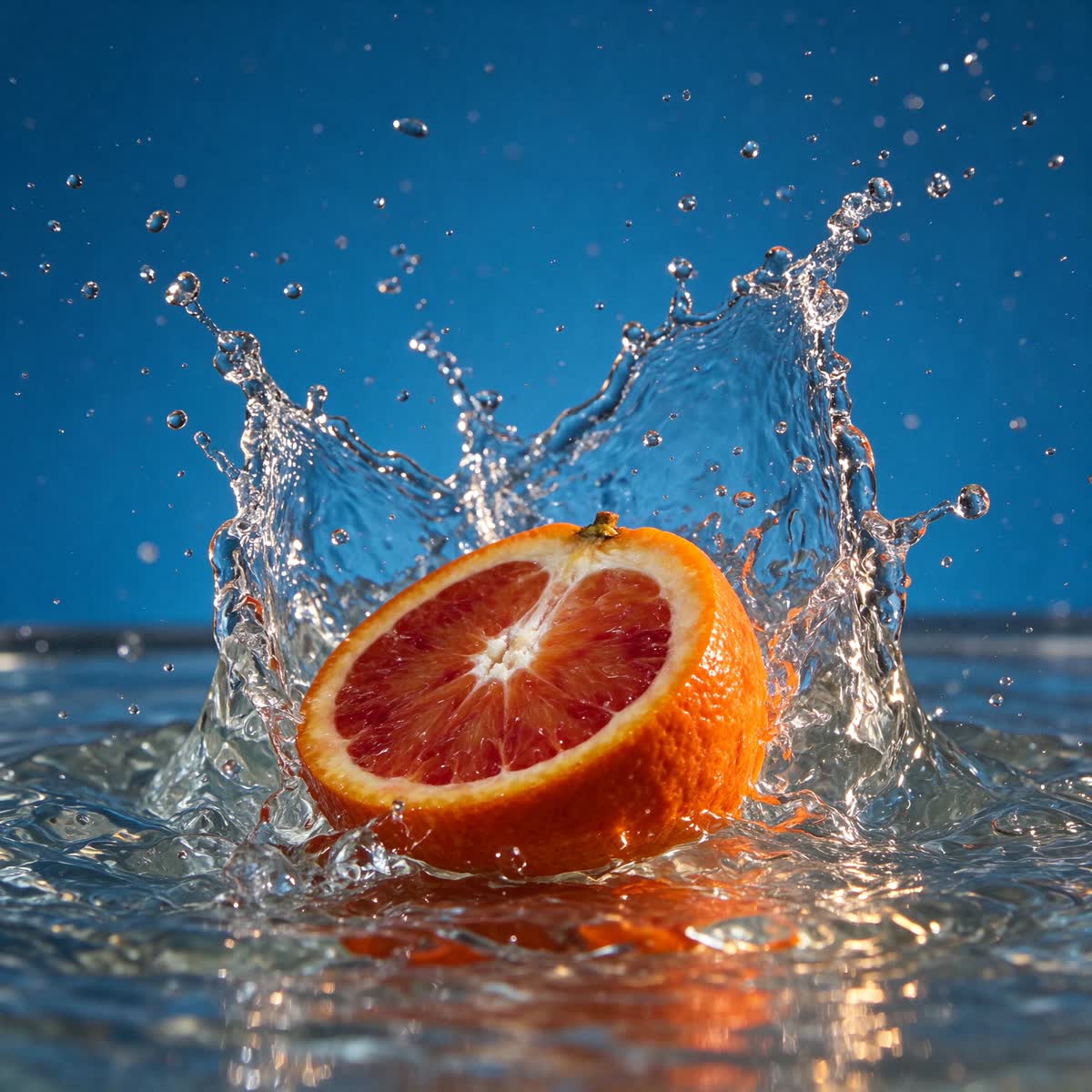
Seedream 5.5 sample · Blood orange splash

A blood orange slices through a crown of water against an ultramarine studio backdrop.

See what Seedream 5.5 can create and edit

Every image below was generated with Seedream 5.5. Open a prompt to see what we asked for, or load the example into the image studio with its settings and reference image.

Original: Change a product backdropOriginal
The headphones retain their ivory shell and orange cushions on a cobalt studio sweep.Result

Change a product backdrop

In this 16:9 edit, the backdrop changes from warm gray to cobalt. The headband outline, orange fabric, and rightward shadow stay recognizable. Blue light also cools the lower highlights on the shell, a detail to check if the photo must match an approved color swatch.

Read the prompt

Replace only the warm-gray seamless paper behind and beneath the headphones with saturated matte cobalt-blue seamless paper. Keep the product in precisely the same position, scale and three-quarter orientation. Preserve the shape of the headband, the ivory plastic, the rust-orange woven cushions, and the original direction of the contact shadow. Keep the same framing and camera angle. Do not add text, accessories, reflections or extra objects.
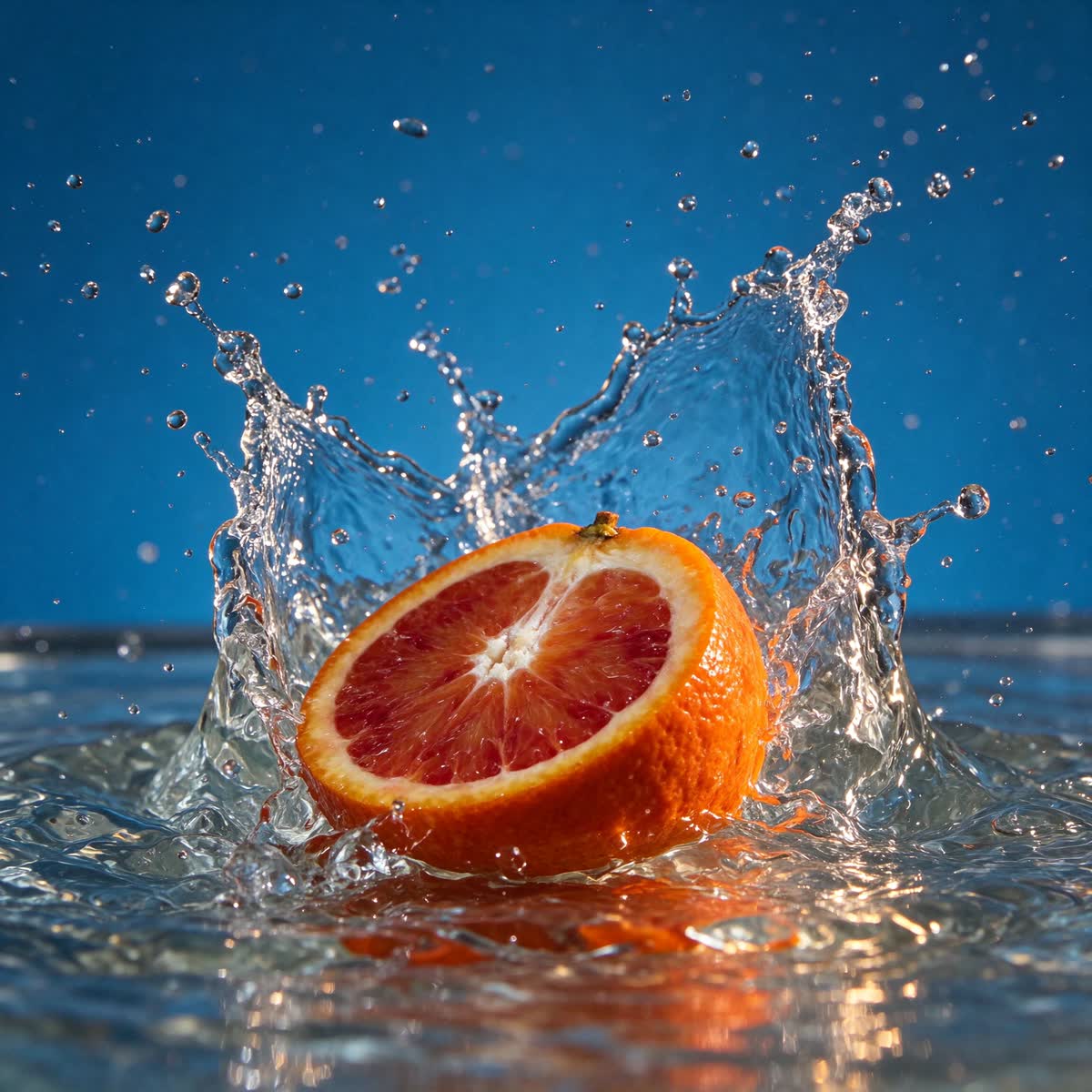
A blood orange slices through a crown of water against an ultramarine studio backdrop.

Freeze a splash for a campaign image

The preview image was generated from this prompt at 1.5K. Describing the cut surface, low camera angle, and suspended droplets gives the model a clear moment to render. For an ad with copy, add where you want empty space before you generate.

Read the prompt

High-speed editorial food photograph of one cut blood orange half hitting a shallow pool of water, cut surface facing the camera. Capture the moment a translucent crown of water curves around the orange, with individual sharp droplets suspended in the air. Rich ultramarine blue seamless studio backdrop, vivid vermilion pulp and warm side light, natural irregular citrus texture, restrained commercial art direction. Low eye-level camera, square composition, the entire splash inside the frame with breathing room on all sides. One fruit half, no hands, no typography, no logos, no watermark.

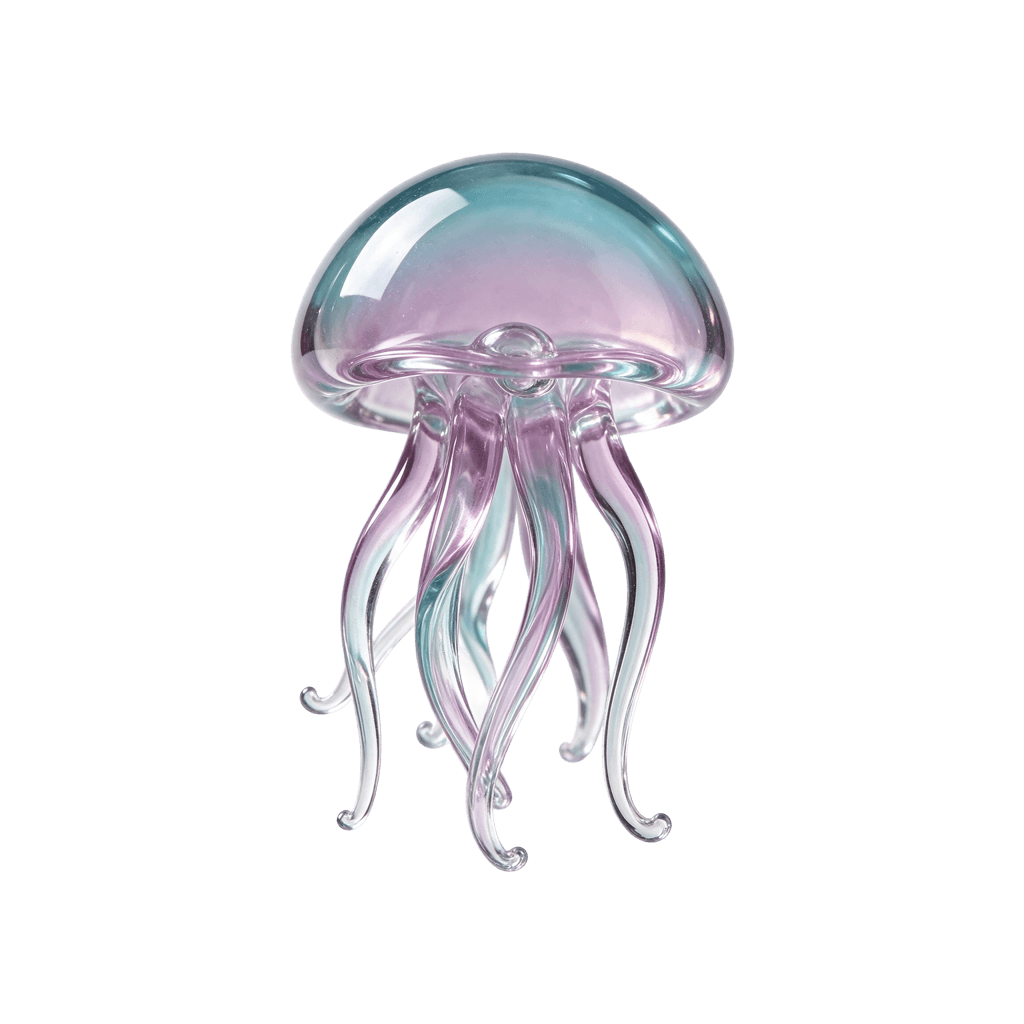
A seafoam glass jellyfish with translucent edges and an alpha background.

Create a transparent glass asset

This 1K PNG has fully transparent space around the jellyfish and partially transparent pixels inside its glass forms. Download the file and place it over a flat color to see how the tentacles blend with the background.

Read the prompt

Create one small seafoam and pale lavender blown-glass jellyfish as an isolated design asset. Show a translucent domed bell and six delicate curved glass tentacles, with polished edges and soft studio highlights. Center the entire silhouette with generous clear margins. Fully transparent background with real alpha outside the object and partial transparency within the thin glass. No floor, no cast shadow, no bubbles, no checkerboard, no frame, no text.

Download sample PNG

How to use Seedream 5.5 on Froging AI

  1. 01

    Start with a clear brief

    For a new image, specify the subject, framing, and light. For a photo edit, upload the approved reference and describe one visible change. Name what should carry through, such as the product position, texture, and direction of the shadow.

  2. 02

    Choose the frame and output

    Use 1:1 for a square campaign image, 16:9 for a wide banner, or Original to keep the source shape during an edit. Try 1K for a first pass and 2K when the final placement needs more detail. Choose Transparent when the image will sit over another design.

  3. 03

    Review, revise, and download

    Compare the new image with the original at the size people will see. Check any small text separately at full size. Save the approved PNG before trying the next edit so each round has a clear reference.

Keep control across several edits

For a product shoot with several revisions, start with the broadest change, such as the backdrop. Use the approved result as the reference for smaller changes to props or reflections. This makes it easier to see which request changed the details you wanted to keep.

Check geometry and color separately. A new surface can change the perceived color of a white object even when the silhouette stays in place. For a catalog, compare the result with a known color reference and check fine print before publishing.

Explore more AI image editing prompts

Prepare transparent graphics for real layouts

Transparent output works for stickers, product cutouts, and decorative elements that need to move between layouts. Describe the edges, material, and whether you want a shadow. For a reusable cutout, leave room around the object so thin details stay inside the canvas.

Test the downloaded PNG on both a light and a dark background. A faint fringe can blend into one layout and stand out in another, particularly around glass, hair, and reflective surfaces.

ByteDance Seed model examples

Seedream 5.5 FAQ

Image inputs, output formats, and credits on Froging AI.

How much does Seedream 5.5 cost on Froging AI?

Each image uses 8 credits at 1K, 8 at 1.5K, or 15 at 2K. The 2K option requires a paid plan or a one-time credit purchase.

Can I use Seedream 5.5 to edit an existing photo?

Yes. Choose AI Image Editor and upload one JPG, PNG, or WebP image up to 20 MB. The short side must be at least 300 px. Describe the area you want changed and specify what should stay in place. You can upload the result for another round of edits.

How do I get a transparent background?

Select Transparent under Background before generating. Seedream 5.5 returns a PNG. For glass, shadows, and fine edges, preview the downloaded file over a light and a dark background before compositing.

What can I export from the Froging AI workspace?

Froging AI offers text-to-image generation and single-image editing. Each run returns one PNG at 1K, 1.5K, or 2K.

Can I keep the shape of my reference photo?

In AI Image Editor, choose Original under Aspect Ratio to let the model use the shape of your source image. For a specific placement, choose the aspect ratio first and describe the composition you want in the prompt.

Does a targeted edit preserve every product detail?

A specific prompt helps preserve shape, material, and framing. Compare the result against the original at full size, especially around labels, fine seams, and reflections. Keep the approved source file for any later revision.

More AI image models